Anyone who has used this Amateur radio knows that programming it by using the faceplate and microphone is only for the strong willed.
I had used the programming cable and free Kenwood software (MCP-2A) before, but I learned some things this time.
I wanted to program a bunch of repeaters along my drive, complete with CTSSS, naming for location, and organized by area...so I don't have to scan the entire list...just the area I am in.
So some notes:
First a great location for repeaters is at http://k5ehx.net (this link shows the actual repeater search map)
You click on the are you want, show repeaters that cover the area...then at the bottom of the list of repeaters (the column left of the map) you will see a group of links to save your searches at.
I clicked on a town at a regular interval along the drive, and exported each search result as a CSV.
Then I imported each CSV into a spreadsheet program (Comma Separated Values, so during the import, choose comma, not tab), and pasted all the results into one big spreadsheet. For naming the repeaters (how they would show on the radio) I decided to use City and State.
This radio only has 8 characters for names, so I used a spreadsheet function to do the editing for me {CONCATENATE((LEFT(C3);6);C4)} The first function glues text files together, the second imbedded function truncates the name (at C3) to 6 letters. The C4 is the two letter state.
There are some interesting codes the Kenwood software uses to import the files...so the easiest method is to pull the data from your radio first, then EXPORT to HMK using the software. ALSO Save that file (the software will save as .mc2, it is not a text file, and not editable...but has all your important settings)
The HMK file is simply a CSV file renamed. Just change the .HMK to .CSV and import it into your spreadsheet.
From there, just make your repeater list match what the Kenwood software wants, and then paste into that HMK you exported and renamed.
When all done, save your new repeater list as a CSV, close the file (I would make a copy) and change the .CSV to .HMK again, then import it back into the Kenwood software.
Don't be scared, but when you import the HMK all your other settings will disappear (callsign, APRS info etc). The solution is open another copy of the Kenwood software and load that .mc2 file you downloaded from the radio. Now just highlight the list of channel memories you imported from the .HMK file, and paste them onto the memory number on the other copy.
You have to just try it...it will make sense after a couple of tries.
Then save that (both programs) with some names you will remember...and put the version you pulled from the radio back into the radio.
If you paste YOUR list of imported repeaters into the list of memories you downloaded from the radio, then things will work much easier.
There is a help file, and it does show what the program is looking for in the HMK file.
Saturday, July 10, 2010


Friday, June 18, 2010
Google Calendar...and phones...
For those not in the know, Google Calendar works well, and (like a lot of things) seems to be becoming the norm.
I find it easy to upload and sync .ics files to the web based calendar, but getting the data to my phone wasn't working 100%.
First I used this webpage to set up a Sync using Activesync and Google.
But still quite a few calendar items were not showing up...for example the US holidays...then another calendar that I subscribed to didn't show up.
And by "show up" I mean it wouldn't sync to my phone...it was on the webpage but not on my phone.
There is not 'clean' way to do this, but the work around is to download the shared calendar you want to add to your calendar, then import that calendar back into your Google calendar.
It is clumsy but works.
Here are the directions.
...unfortunately there is no way to update the imported calendar...if the shared one changes, you have to re-import it, and remove the dupes yourself.
But it is better than either typing in each entry...or individually importing each entry.
I find it easy to upload and sync .ics files to the web based calendar, but getting the data to my phone wasn't working 100%.
First I used this webpage to set up a Sync using Activesync and Google.
But still quite a few calendar items were not showing up...for example the US holidays...then another calendar that I subscribed to didn't show up.
And by "show up" I mean it wouldn't sync to my phone...it was on the webpage but not on my phone.
There is not 'clean' way to do this, but the work around is to download the shared calendar you want to add to your calendar, then import that calendar back into your Google calendar.
It is clumsy but works.
Here are the directions.
That is what I did, and now all that stuff syncs to my phone...SOLUTION!!!!!!!!!

5/22/09
ok this is how you do you import this calender to you calender its the US 2009 Holiday Calander once you do this you can sync and load the holidays to you device.
you can either use the link or download it to your computer and upload the calender to your own via HTML or FILE.
http://www.google.com/calendar/ical/usa__en% 40holiday.calendar.google.com/ public/basic.ics

...unfortunately there is no way to update the imported calendar...if the shared one changes, you have to re-import it, and remove the dupes yourself.
But it is better than either typing in each entry...or individually importing each entry.
Thursday, June 17, 2010
iBluever screenshots
I thought I would show some screenshots of how to setup iBluever, and how to operate.
This is what you first see when iBluever starts...note the "Connected to Bluet00th daemon."

Now we turn iBluever ON
Note "Bluet00th initialized successfully"

Now it starts populating the list with visible bluetooth devices.

Now it has named all the visible bluetooth devices.
click on the device you wish to use (or hit the (>) if changing settings)

Here is the settings screen, these are the only settings I used for my Sprint phone.

Now go back to the main screen, and tap on the device you are connecting to. (all the visible devices will still be on the screen)
The script will start, and will take longer the first time while your phone is linking to the iPod etc...watch your phone for pop up messages about PIN or data access.

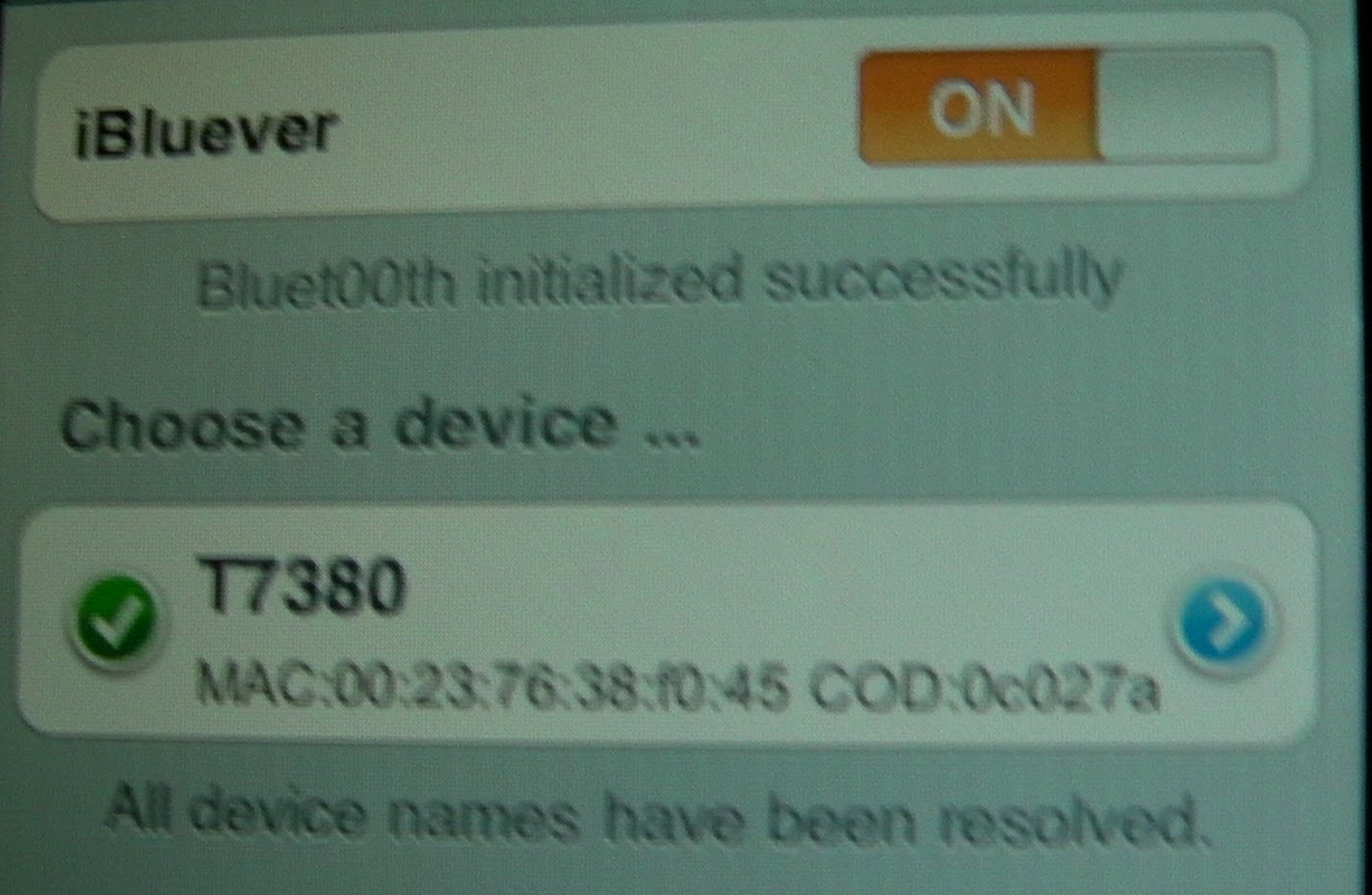
Now script has successfully completed, and it shows a green checkmark and the mac address etc below the device name...
...if it doesn't successfully complete, the last script step will still be showing below the device name.

After you have successfully connected to your phone, and then turned iBluever off, your settings will be saved, and from then on just click on the device name to connect...
BTW, on my sprint phone I needed to change a registry setting to share data over the bluetooth...see previous posts on the subject.
This is what you first see when iBluever starts...note the "Connected to Bluet00th daemon."

Now we turn iBluever ON
Note "Bluet00th initialized successfully"

Now it starts populating the list with visible bluetooth devices.

Now it has named all the visible bluetooth devices.
click on the device you wish to use (or hit the (>) if changing settings)

Here is the settings screen, these are the only settings I used for my Sprint phone.

Now go back to the main screen, and tap on the device you are connecting to. (all the visible devices will still be on the screen)
The script will start, and will take longer the first time while your phone is linking to the iPod etc...watch your phone for pop up messages about PIN or data access.

Now script has successfully completed, and it shows a green checkmark and the mac address etc below the device name...
...if it doesn't successfully complete, the last script step will still be showing below the device name.
After you have successfully connected to your phone, and then turned iBluever off, your settings will be saved, and from then on just click on the device name to connect...
BTW, on my sprint phone I needed to change a registry setting to share data over the bluetooth...see previous posts on the subject.
Subscribe to:
Posts (Atom)

 Posts


